Calldacity Chrome Extension - White-Label Customer Onboarding Requirements
Overview
This document outlines the assets and information required from customers to create a white-labeled version of the Calldacity Chrome Extension. The extension supports full white-labeling including custom branding, colors, and icons.
Required Assets
No. | Item | Format | Description |
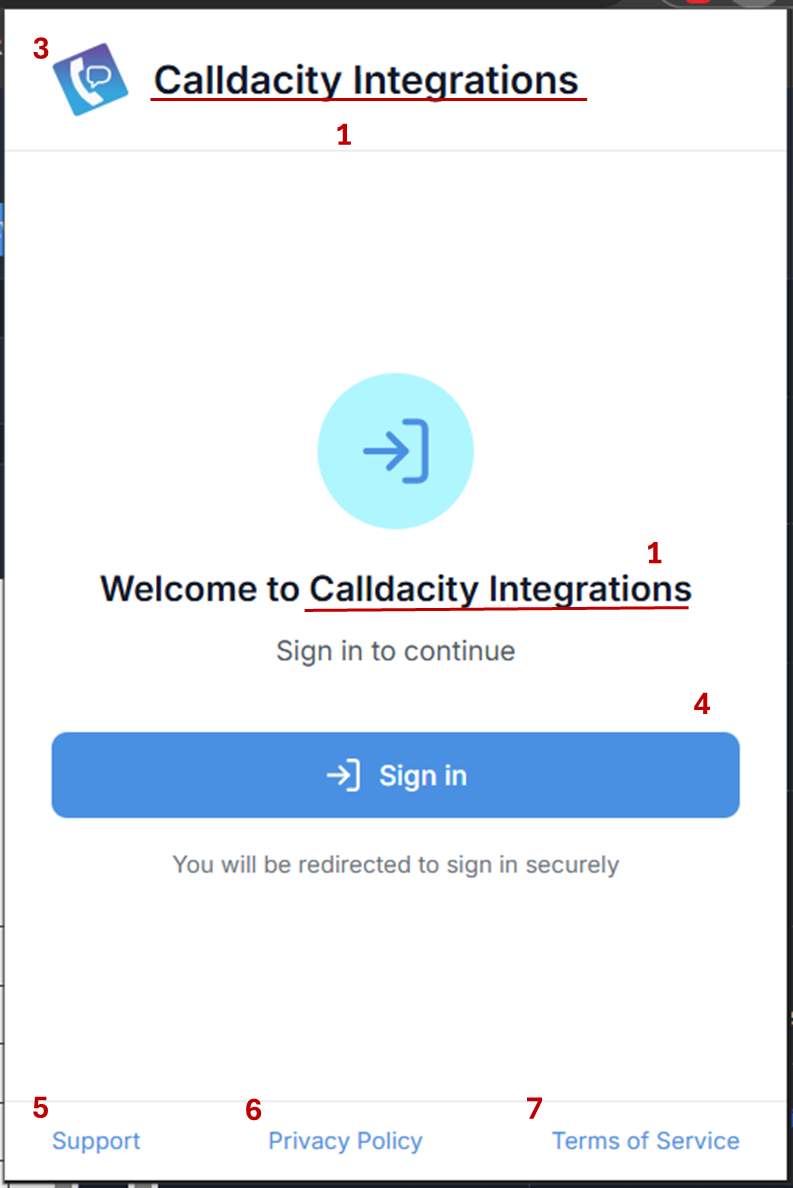
1 | Brand name (full) | Text | Full app name (e.g., "Calldacity Integrations"). Displayed in the extension header, Chrome Web Store listing, and Chrome toolbar tooltip. |
| 2 | Brand name (short) | Text | Short display name (e.g., "Calldacity"). Used in notifications, error messages, and compact UI labels. |
3 | App logo | SVG | Logo displayed within the extension UI on the login page and main header. SVG format preferred for scalability. Should work on a white background. |
4 | Primary brand color | Hex code (e.g., #38A6DE) | The main brand color used as the accent color on the OAuth login page. Provide without the # prefix or with — either is fine. |
5 | Support page URL | URL | Link to customer's support/help center page. Displayed in the extension's Settings footer. |
6 | Privacy Policy URL | URL | Link to customer's privacy policy page. Displayed in the extension's Settings footer. |
7 | Terms of Service URL | URL | Link to customer's terms of service page. Displayed in the extension's Settings footer. |
8 | Test account | Text | A test account that allows us to verify your build is ready to launch |
Login:
After login:
Optional Assets
Item | Format | Description |
Background gradient colors | 2x Hex codes | Start and end colors for the OAuth login page background gradient. If not provided, the primary brand color is used for both. |
App icons | PNG (16x16, 32x32, 48x48, 128x128) | Icons used across Chrome surfaces. 16px for the browser toolbar, 32px for Windows taskbar, 48px for the chrome://extensions page, and 128px for the Chrome Web Store and install dialog. If not provided, icons are generated from the SVG logo. |
OAuth login:
Notes

The SVG logo should be visually distinct at small sizes since it is displayed in the extension header (approximately 32x32 pixels).
Icon files should have a transparent background for best results.