Calldacity Integrations | How to Setup the Calldacity Connect Extension
Calldacity Integrations | How to Setup the Calldacity Connect Extension

Are you looking for a way to keep track of your call history, click-to-dial out of your CRM, and Screen-pop solution for instant CRM lookup upon Inbound calls? Look no further! The Calldacity Connect Extension provides a unique browser integration that carries a sleek minimalistic view easily hidden within your browser's extensions. Below will be a guide on how to download, login, and use the different solutions provided within the extension.
Setup Guide:
Step 1: Installing the Chrome Extension from the Webstore and pinning it to the Browser
b. Once installed, select the puzzle piece in the top right of the browser and hit the "Pin" button to the right of Calldacity Connect
Step 2: Login to the Extension via your UCaaS Credentials
a. Enter your Friendly tenant name or Host ID.
b. Enter Username and Password (This will be the same credentials used for your UCaaS User)
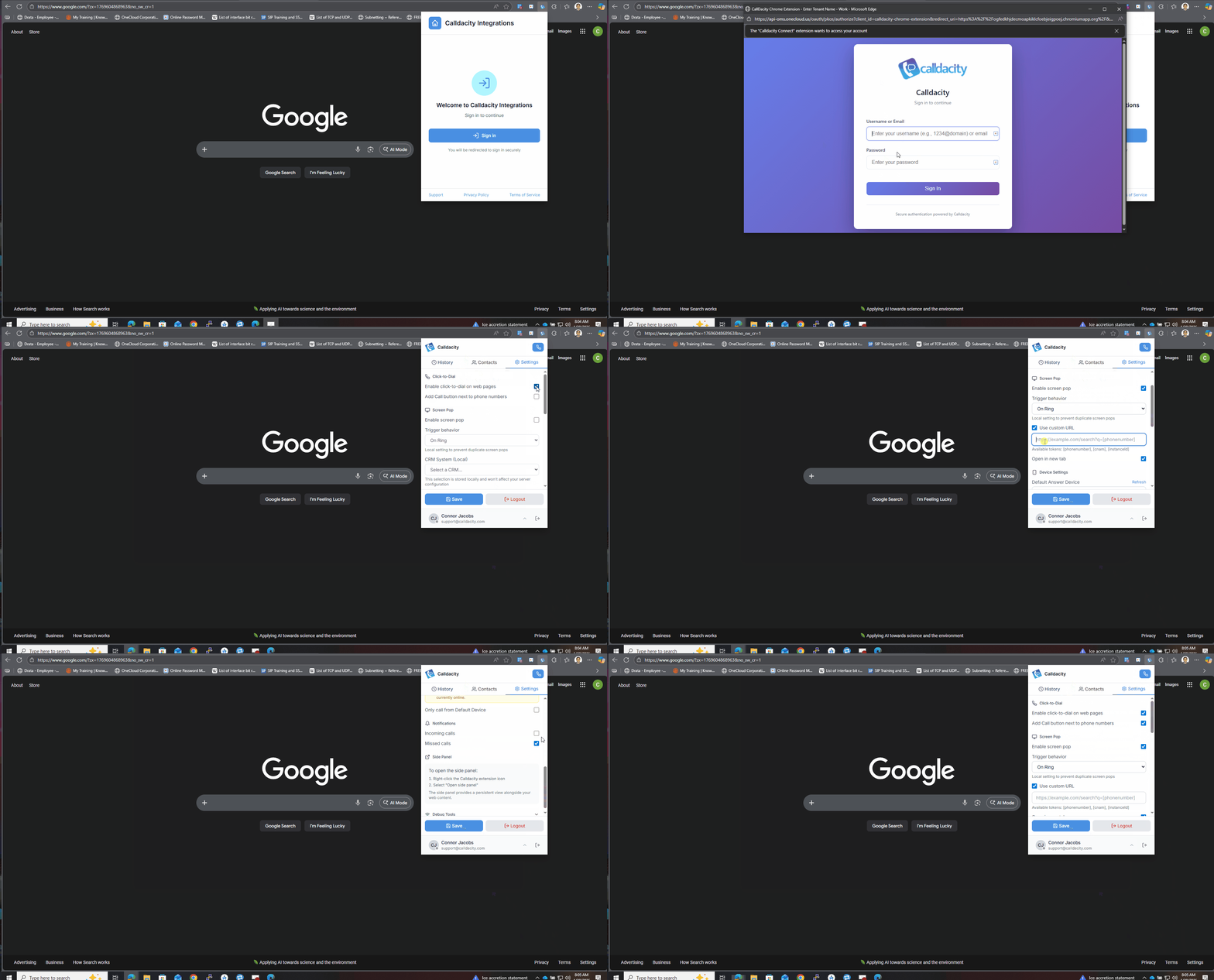
Step 2: Login to the Extension via your UCaaS Credentials
a. Enter your Friendly tenant name or Host ID.
b. Enter Username and Password (This will be the same credentials used for your UCaaS User)
Sections:
Call History: This will be synced from your UCaaS Portal allowing you to have access to see inbound, outbound, and missed calls.
Contacts: Similar to Call History; Contacts is synced from the UCaaS Portal allowing you to do outbound calling directly to the contact.
Settings: This is where the features live, Settings is where you can customize your use case of the integration like Click-to-dial and Screen Pop.
Features To Highlight:
Click-to-Dial: Allows for direct calling of a phone number from the browser
Screen Pop: When an inbound call comes in this will launch the CRM in another tab and search for a contact via the Caller ID.
Call Control: Customize the device or devices you want to call with when utilizing the extension.
- Adjusting to a specific default device via the drop down in settings and enabling the "Default Device" checkbox or, with the checkbox unchecked, allow the extension to utilize your UCaaS User's answering rules when using the click to dial or direct dial within the extension.
Language: Ability to change the default language used within the extension to either English, French or Japanese.
Inbound/Missed Call Notifications: Receive notifications for inbound or missed calls to enhance visual awareness and decrease scenarios leading to missing the call.
 Please Note: Some of the Screenpop to CRM links require an instance ID to properly pop within your companies CRM instance.
Replacing the instanceId token from within the platform setting with the instance id of the intended platform will automatically set the instanceId for all users the platform setting is assigned to for each specific config.
For Example: Below if replacing the direct [instanceid] token within the value with the instance id from Zoho Desk this will allow for the Zoho Desk Screen Pop to not require the instance id on each individual user's extension.
Instance ID Locations:
- HubSpot
- Log in to your HubSpot account
- Look at your browser’s address bar
- Your instance ID (also called Hub ID) will appear in the URL in this format:
https://app.hubspot.com/contacts/[INSTANCE_ID]/
- Zoho Desk
- Log in to your Zoho account
- Look at your browser’s address bar
- Your instance ID (also called Portal Name) will appear in the URL in this format:
https://desk.zoho.com/agent/[INSTANCE_ID]/department
- ConnectWise
- Log in to ConnectWise Manage
- Navigate to Account Settings
- In the left-hand menu, click Settings
- Select Account from the dropdown
- Under Account Information, locate Company ID
- This value is your Instance ID
- Salesforce
- Log in to your Salesforce account
- Look at your browser’s address bar
- The instance name will appear in the URL format:
https://[INSTANCE_ID].salesforce.com

Please Note: This product does not support outbound calling directly from the extension. The extension will route the call to be taken based off the answering rules in the UCaaS portal or the Default Device set in Settings.