2. Once logged in, click the drop-down menu next to your name:
Click "Settings"
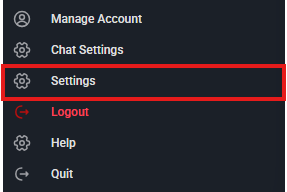
4. Under "Manage Account" select "Personal Meeting ID"
5. Select "Add" or "Edit" to create or edit your Meeting ID
6. Enter in your desired meeting ID and optional white-label information and click "Add":
7. Now when you start or schedule a meeting, your Meeting ID and URL will use your custom meeting ID. This is convenient if you want to meet with a group regularly, you can always send them your unique ID similar to a direct phone number.
Navigation Menu Icon Action Description Mute Select the Mute icon to mute your microphone during a meeting. It will have a strike through the microphone when muted. Select the Mute icon again to un-mute yourself. Select the arrow, located on the mute ...
Calldacity AI Features Integration Guide Overview Calldacity provides AI-powered features that integrate seamlessly with your NetSapiens portal. This guide walks you through the setup process for enabling: AI Agent – Intelligent voice receptionist AI ...
Calldacity Connect Phone In this article we go into detail on the Calldacity Connect embedded softphone. Placing a call Placing a call in Calldacity Connect can be accomplished by using the dial-pad located in the top right, next to your avatar. The ...
Calldacity Integrations | How to Setup the Calldacity Connect Extension Are you looking for a way to keep track of your call history, click-to-dial out of your CRM, and Screen-pop solution for instant CRM lookup upon Inbound calls? Look no further! ...
Calldacity Integration | Setting Up HubSpot CRM Integrator Important Note: To setup this Integration you must have an administrative account set up in HubSpot as well as an Office Manager scope in the UCaaS Portal to complete the following guide. ...